Introduction
Developer-focused documentation for integrating OneKey hardware in Web and Native apps. This guide covers SDK installation, initialization, device discovery, UI prompts, and your first signing call.
Choose Your Transport
USB integrations should use @onekeyfe/hd-common-connect-sdk; use @onekeyfe/hd-web-sdk only when the host mandates an iframe/plugin setup.
Connection Methods
| Method | Description | Supported devices |
|---|---|---|
| USB / WebUSB | Wired USB; Web via WebUSB, native via low-level plugin | All OneKey devices |
| Bluetooth BLE (native) | Native apps over BLE (not Web Bluetooth); requires OS Bluetooth & permission | OneKey Pro, Touch, Classic 1s / Classic 1s Pure; Mini does not support BLE |
| Air-Gap (QR) | Offline QR signing | OneKey Pro only |
Platform Guide
| Platform (Stack) | Transport | SDK Package | Guide |
|---|---|---|---|
| Web (Browser) | WebUSB | @onekeyfe/hd-common-connect-sdk | WebUSB Connection Guide |
| React Native | BLE | @onekeyfe/hd-ble-sdk | React Native BLE |
| Android (Native) | BLE | @onekeyfe/hd-common-connect-sdk | Android BLE |
| iOS (Native) | BLE | @onekeyfe/hd-common-connect-sdk | iOS BLE |
| Flutter | BLE | @onekeyfe/hd-common-connect-sdk | Flutter BLE |
Low-level protocol and custom channels: Low-Level Transport Plugin & Protocol
Install SDK
Pick one entry by runtime:
# Web / desktop WebUSB (recommended)
npm i @onekeyfe/hd-common-connect-sdk

# React Native BLE
npm i @onekeyfe/hd-ble-sdk

# Native host with low-level plugin (Android/iOS/Flutter bridge)
npm i @onekeyfe/hd-common-connect-sdk

# Plugin iframe host only (plugin-only)
npm i @onekeyfe/hd-web-sdk
Transport details:
- WebUSB: WebUSB guide
- React Native BLE: BLE guide
- Native Android / iOS / Flutter: bridge JS calls through low-level transport plugins (see pages for examples).
- Custom channel & protocol: Low-Level Transport Plugin & Protocol
Initialize the SDK
Use the initialization method that matches your runtime—avoid mixing SDK entries.
Web / Desktop WebUSB
Use @onekeyfe/hd-common-connect-sdk:
import HardwareSDK from '@onekeyfe/hd-common-connect-sdk';

await HardwareSDK.init({
  env: 'webusb',
  debug: process.env.NODE_ENV !== 'production',
  fetchConfig: true,
});
React Native BLE
Use @onekeyfe/hd-ble-sdk:
import HardwareSDK from '@onekeyfe/hd-ble-sdk';

await HardwareSDK.init({
  debug: __DEV__,
});
Native Bridge / Low-level
Use @onekeyfe/hd-common-connect-sdk:
import HardwareSDK from '@onekeyfe/hd-common-connect-sdk';

await HardwareSDK.init({
  env: 'lowlevel',
  debug: process.env.NODE_ENV !== 'production',
  fetchConfig: true,
});| Environment | Use Case |
|---|---|
webusb | Browser WebUSB (no iframe) |
lowlevel | Native apps bridging JS via low-level adapter |
react-native | Custom RN bridge or Electron BLE |
emulator | Built-in emulator transport |
Plugin Iframe Host
Use @onekeyfe/hd-web-sdk (plugin-only):
import { HardwareSDK } from '@onekeyfe/hd-web-sdk';

await HardwareSDK.init({
  debug: process.env.NODE_ENV !== 'production',
  connectSrc: 'https://jssdk.onekey.so/1.1.19/', // iframe host
});
Bind Events
Set up event listeners for device connection and UI prompts:
import { UI_EVENT, UI_REQUEST, DEVICE } from '@onekeyfe/hd-core';

HardwareSDK.on(UI_EVENT, async (message) => {
  switch (message.type) {
    case UI_REQUEST.REQUEST_PIN:
      // Handle PIN entry (see below)
      break;
    case UI_REQUEST.REQUEST_PASSPHRASE:
      // Handle passphrase entry (see below)
      break;
  }
});

HardwareSDK.on(DEVICE.CONNECT, (payload) => console.log('Connected:', payload));
HardwareSDK.on(DEVICE.DISCONNECT, (payload) => console.log('Disconnected:', payload));
Discover Devices
WebUSB Authorization (Browser)
import { ONEKEY_WEBUSB_FILTER } from '@onekeyfe/hd-shared';

// Trigger browser's device chooser
await navigator.usb.requestDevice({ filters: ONEKEY_WEBUSB_FILTER });
Search Devices
const result = await HardwareSDK.searchDevices();
if (!result.success) throw new Error(result.payload.error);

const devices = result.payload;
// [{ connectId, deviceId?, name, deviceType, ... }]
Get Device Features
Resolve device_id from connectId (required for BLE connections):
const features = await HardwareSDK.getFeatures(connectId);
if (!features.success) throw new Error(features.payload.error);

const deviceId = features.payload.device_id;
Important:
connectIdis stable for the same device (reset does not change it);device_idchanges after reset/recovery and must be refreshed viagetFeatures.
Handle PIN Entry
When a protected call is made and the device is locked, handle REQUEST_PIN:
import { UI_RESPONSE } from '@onekeyfe/hd-core';

// Option 1: Enter on device (recommended)
await HardwareSDK.uiResponse({
  type: UI_RESPONSE.RECEIVE_PIN,
  payload: '@@ONEKEY_INPUT_PIN_IN_DEVICE'
});

// Option 2: Software blind PIN (not supported on Pro/Touch)
await HardwareSDK.uiResponse({
  type: UI_RESPONSE.RECEIVE_PIN,
  payload: userInputPin  // e.g., '1234'
});
Note: OneKey Pro and Touch devices only support on-device PIN entry.
Handle Passphrase
For hidden wallet access, handle REQUEST_PASSPHRASE:
// Option 1: Enter on device (most secure)
await HardwareSDK.uiResponse({
  type: UI_RESPONSE.RECEIVE_PASSPHRASE,
  payload: { passphraseOnDevice: true, value: '' }
});

// Option 2: Software input with optional session cache
await HardwareSDK.uiResponse({
  type: UI_RESPONSE.RECEIVE_PASSPHRASE,
  payload: { value: userPassphrase, passphraseOnDevice: false, save: true }
});
To force standard wallet (skip passphrase), add useEmptyPassphrase: true to any method call.
First Signing Call
Example: Sign an EVM message (EIP-191 personal_sign):
const message = 'Hello OneKey';
const messageHex = Buffer.from(message).toString('hex');

const res = await HardwareSDK.evmSignMessage(connectId, deviceId, {
  path: "m/44'/60'/0'",
  messageHex,
  chainId: 1,
});

if (!res.success) throw new Error(res.payload.error);

console.log('Address:', res.payload.address);
console.log('Signature:', res.payload.signature);
Device and Transport Compatibility
Support status for Bluetooth, USB, and Air-Gap connections
| Device | Bluetooth | USB | Air-Gap |
|---|---|---|---|
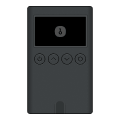 OneKey Classic 1s OneKey Classic 1s | Supported | Supported | N/A |
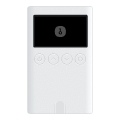 OneKey Classic 1s Pure Battery-free edition | Supported | Supported | N/A |
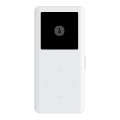 OneKey Mini Compact USB-only wallet | N/A | Supported | N/A |
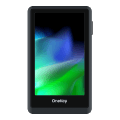 OneKey Touch Full touchscreen experience | Supported | Supported | N/A |
 OneKey Pro Premium with fingerprint security | Supported | Supported | Supported |
Air-Gap Mode: OneKey Pro supports air-gapped signing via QR codes — no USB or Bluetooth connection required, providing the highest level of security. See Air-Gap Integration for details.
Core Packages
| Package | Purpose | NPM | Version |
|---|---|---|---|
@onekeyfe/hd-common-connect-sdk | Unified SDK surface for Web/Native; recommended entry for transports | npm |  |
@onekeyfe/hd-ble-sdk | Pure React Native BLE stack (recommended for RN projects) | npm |  |
@onekeyfe/hd-transport-react-native | React Native transport side-effects/bridge | npm |  |
@onekeyfe/hd-transport-web-device | Web transport for device access in web contexts | npm |  |
@onekeyfe/hd-transport-emulator | Emulator transport (develop and test without a physical device) | npm |  |
@onekeyfe/hd-transport-http | HTTP bridge transport | npm |  |
@onekeyfe/hd-transport-lowlevel | Low-level host adapter contract (for native integrations) | npm |  |
@onekeyfe/hd-core | Core events, constants, message wiring | npm |  |
@onekeyfe/hd-shared | Shared utilities and types | npm |  |
@onekeyfe/hd-web-sdk | Web SDK wrapper (not recommended; prefer hd-common-connect-sdk) | npm |  |
- Changelog: releases
API References
- Per-chain APIs: Hardware SDK Core API Guide
- Events and UI responses: Config Event
- How to unlock the device: PIN Code
- Need support for passphrases? What is Passphrase
Concepts and Advanced Topics
- Message protocol (for debugging low-level transports): Low-level transport plugin
Support
For users: This documentation is primarily for developers. If you encounter issues while using our products, please consult our Help Center or submit a support ticket.